Table of contents
What's inside
03
Foreword2
A practical walkthrough of what the app shows, why it matters, and how it helps Product Owners, Product Managers and Scrum Masters prepare faster.
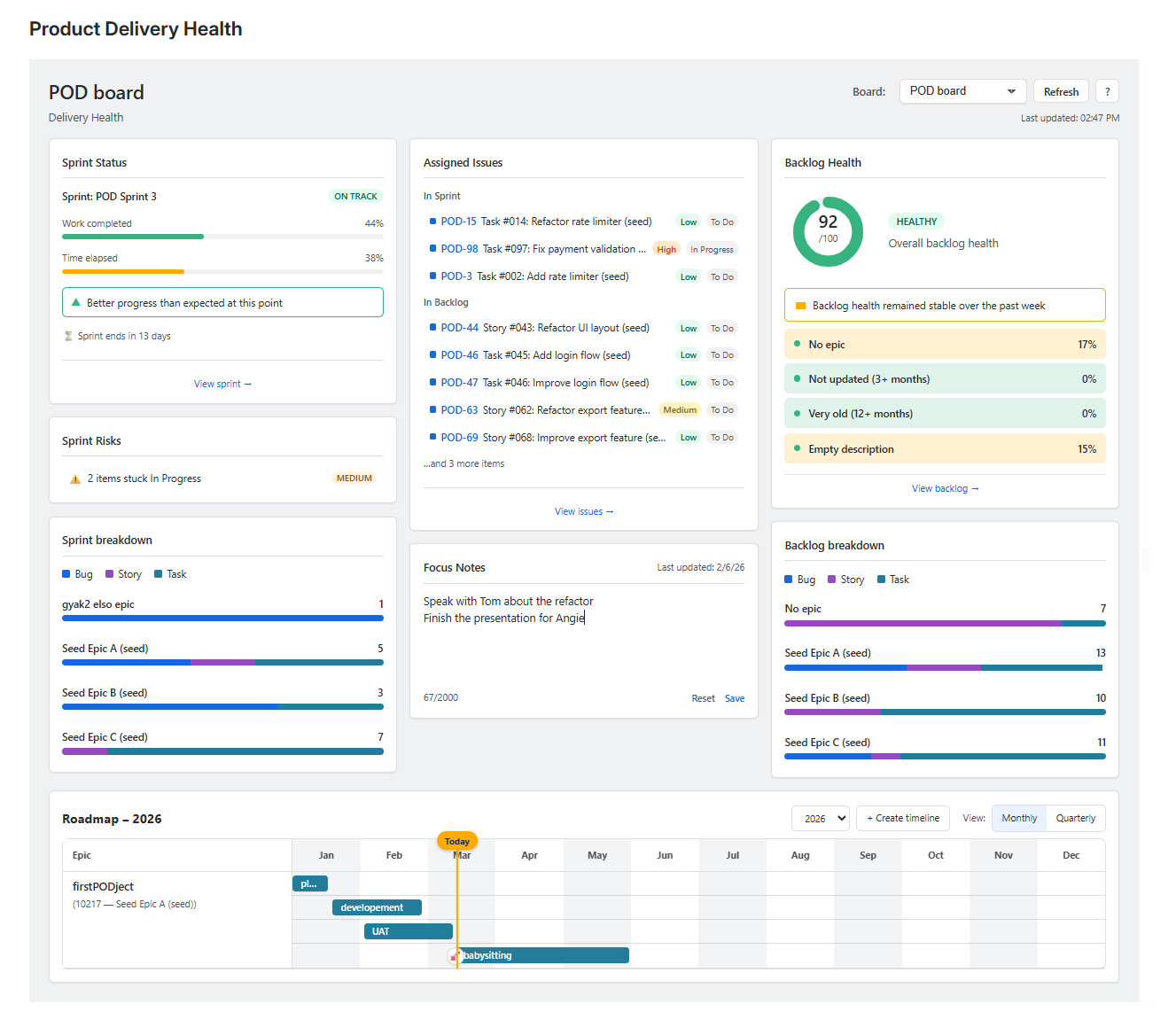
If you're a Product Owner, Product Manager, or Scrum Master, you probably know this feeling: you sit down in the morning, and before you're even up to speed, you've already opened three Jira tabs, built a few quick filters, scrolled through the backlog, and checked who closed what yesterday.
Product Delivery Health was built by a Product Owner managing multiple products at the same time — someone who got tired of hunting for information across different boards and backlogs.
Instead of switching between views, simply select the board you want to review and instantly see the delivery health of that product, along with all the issues assigned to you.
No searching. No filter gymnastics. One screen, one glance.
This guide is not about where to click. It's about what you see and why — so the app doesn't just show you data, but actually helps you make decisions.
Kati — Baking Dog
At the top of the dashboard you'll find the board name on the left, and the board selector on the right. This is your starting point every time.
The board dropdown lists all Scrum boards you have access to in Jira. If you only have one board, it loads automatically. If you have several, the first time it picks one at random — after that, it always remembers where you left off. No board available? You'll see a “No board available” message.
Hit Refresh any time something has changed in Jira and you want the latest data. The timestamp below the button shows when the data was last loaded.
Click the ? button to open the onboarding flow — a quick walkthrough of the main dashboard elements, useful when you're getting started or want to show the app to a colleague.
This is the panel you'll look at most often. It tells you how the current sprint is going — at a single glance.

The app compares two things: how much time has passed, and how much work is done. If they’re aligned, you’re on track.
| Badge | What it means |
|---|---|
| ON TRACK | Work is at most 5% behind elapsed time. All good. |
| ATTENTION NEEDED | More than 5% behind, but work completed is still above 30%. |
| AT RISK | Work below 30% with half the sprint gone, or sprint ends in less than 1 day with less than 50% done. |
If at least one issue in the sprint has story points, the app switches to point-based calculation. If none are estimated, it uses issue count.
A small indicator compares this sprint's progress to where the previous sprint was at the same point:
Click “View sprint” to open all sprint issues in Jira's issue navigator.
The best Product Owners don't wait until the last day of the sprint to find out something went wrong. This panel helps you see problems coming.
The app continuously monitors the sprint and only shows risks that are actually present. If everything looks fine, you'll see “No significant sprint risks detected” — and that's a good day.
Issues added after the sprint started. A few are fine — but if scope keeps growing, planning needs attention.
Stories larger than 8 story points are hard to finish within a single sprint. Consider breaking them down.
Issues with no story points. If the whole team doesn't use points, this risk is hidden.
If more than 25% of the sprint is still “To Do” at the halfway point, a last-minute rush is coming.
If an issue has been “In Progress” for more than 30% of the sprint length, something is probably blocking it.
If 90% of the sprint has elapsed and there are still issues with no assignee, someone will be scrambling.
Issues removed from the sprint after it started. Often a hidden failure dressed as progress.

This panel shows how the current sprint's issues are distributed across epics, weighted by story points. It gives you an immediate sense of where the team's effort is going this sprint — without writing a single JQL query or setting up a filter.

Each bar is colour-coded by issue type — Bug, Story, Task, Spike, or any custom type your team uses.
The app picks up whatever issue types exist in your Jira instance, whether they're system defaults or ones you created yourself.
Issues without an epic appear under “No epic”. If the team doesn't use story points, the breakdown uses issue count instead.
Click any bar to open all matching issues in Jira's issue navigator — no filters, no JQL, just one click.
Grab your morning coffee, open the app, and here's everything waiting for you — your open issues from both the current sprint and the backlog, all in one place. Priority and status are shown at a glance, so you always know what's urgent and what's in progress. No filters, no searching, no JQL. Just your work, ready to go.
All your open sprint issues, with status and priority. Every single one is shown — no limit.
Up to 5 of your open backlog items. If you have more, the app tells you how many are hidden.
Click any issue to open it directly in Jira. Click “View issues” to open all your issues in the issue navigator.

Sometimes you just need to write something down before you forget it. Focus Notes is a simple, private text block — only you can see it, only you can edit it. Think of it as your personal crib sheet for the board.
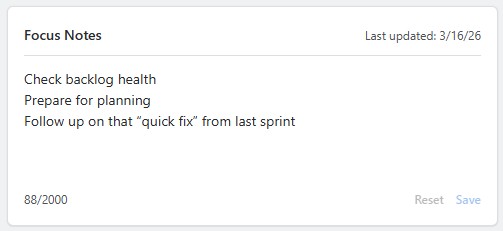
Each board has its own notepad, so your notes for one product stay neatly separate from the rest. Jot down what needs attention, what you promised someone, or what you don't want to forget before the next standup. Up to 2,000 characters — more than enough for a daily brain dump.
The timestamp of your last save is always visible. Hit Save to keep your notes, Reset to clear them.
A great sprint starts with a great backlog. This panel scores your backlog's readiness for sprint planning — from 0 to 100. Go get that perfect score.
The score is calculated by looking at what percentage of your backlog issues fall into each problem category. The more issues flagged, the lower the score for that dimension. Each dimension contributes equally to the final number.
If your board doesn't use story points at all, the “No estimates” dimension is automatically excluded — the app assumes this is intentional and won't penalise your score for it. With all five dimensions active, each is worth up to 20 points. Without the estimates dimension, each remaining one is worth up to 25 — so 100 is always achievable.
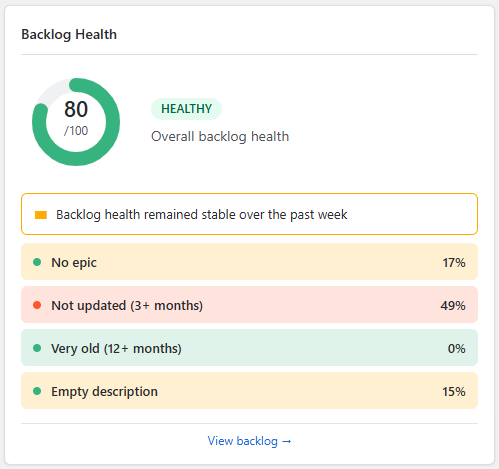
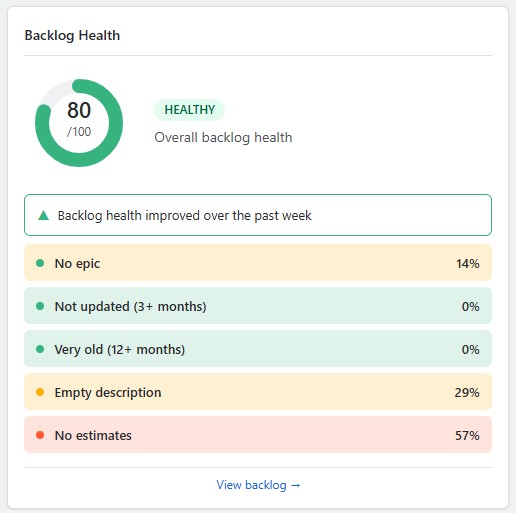
How many issues have no epic assigned. If many items are unattached, it's hard to see where development is heading.
Issues not touched in over 3 months. If nobody has looked at something for that long, it is worth checking whether it is still relevant.
Issues created more than a year ago that are still open. These may have been forgotten, or duplicated elsewhere and already done. Worth a review.
Issues with fewer than 10 characters in the description field. Without context, it's hard to estimate or understand a task.
Issues with no story point estimate. If the whole board uses no points, this dimension is excluded — the app assumes the team made a deliberate choice and won't penalise the score for it.
| Score | Badge | What it means |
|---|---|---|
| 80–100 | Healthy | Backlog is ready for sprint planning. |
| 50–79 | Needs Attention | Some work to do, but not critical. |
| 0–49 | Poor | Significant issues — worth dedicating time to backlog grooming. |
A small indicator shows whether the backlog improved, stayed the same, or declined compared to last week.
Click “View backlog” to open all backlog issues in Jira's issue navigator.
The same epic-based breakdown as Sprint Breakdown — but applied to the entire backlog. It gives you a bird's-eye view of where future work is concentrated, and helps you spot if one area is taking over.
Each bar is colour-coded by issue type — Bug, Story, Task, Spike, or any custom type your team uses.
The app picks up whatever issue types exist in your Jira instance, whether they're system defaults or ones you created yourself.
Issues without an epic show as “No epic”. If story points aren't used, issue count is shown instead.
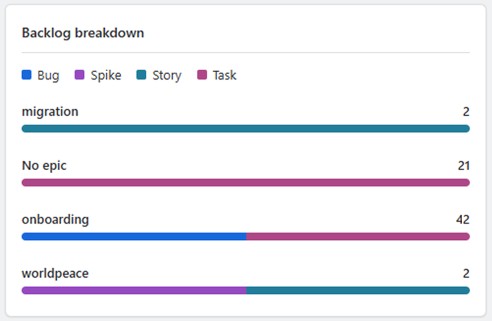
Click any bar to open all backlog issues for that epic in Jira's issue navigator.
The Roadmap is a lightweight visual timeline — built by you, not pulled from Jira. It's not trying to compete with full roadmap tools. It's a quick visual notepad that shows how the delivery is supposed to go.
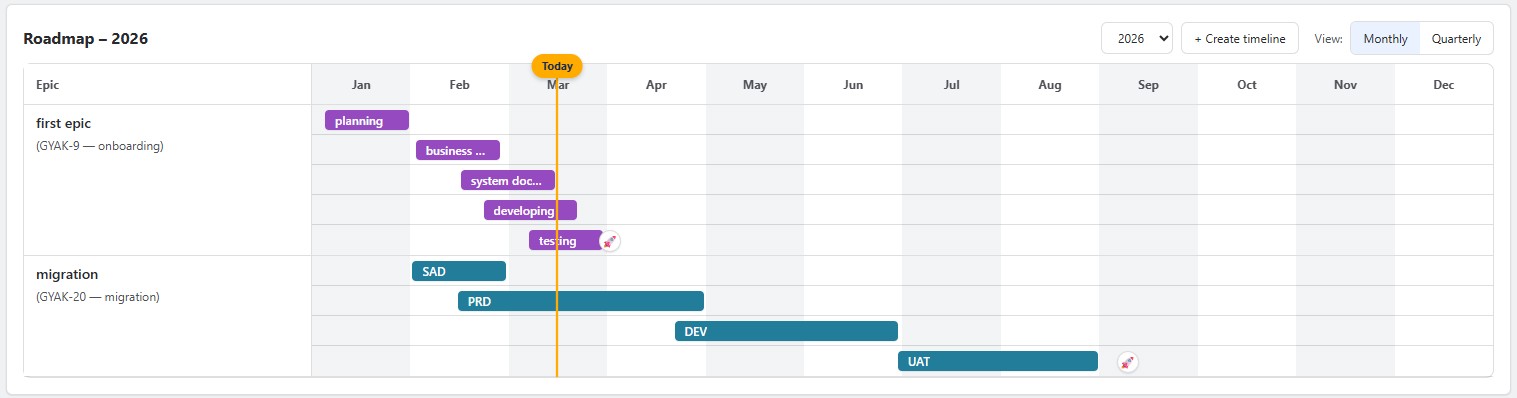
The header shows the current year by default. If any of your timeline entries span across multiple years, a dropdown appears letting you switch between years — so you can see the full picture without losing context. Next to the year selector, you can also switch between Monthly and Quarterly view, depending on how much detail you want to see.
Each board has its own separate roadmap. The roadmap is shared at board level, so everyone with access to that board in the app sees the same roadmap and can update it.
Click “+ Create timeline” to open a blank editor modal. Click any existing phase bar on the roadmap to edit it with pre-filled data.
Required. This is the label shown on the roadmap row.
Optional — connect to a real Jira epic, or leave it as a planning note. You can add this later.
Pick a color for the timeline bars.
At least one is required. Each phase has a name, start date, and end date. Add as many as you need.
Required. Shown as a marker on the timeline.

To delete a timeline entry, open the editor and click “Delete timeline” at the bottom left. You'll be asked to confirm.
We'd love to hear from you. Drop us a line — we read everything.
hello@bakingdog.com
Try Product Delivery Health and review sprint progress, backlog health, assigned work and roadmap context in one place.
Try it free in Jira